Set up Koral with Google Tag Manager
Add the Koral script via Google Tag Manager and quickly get started with visual search on your site.
-
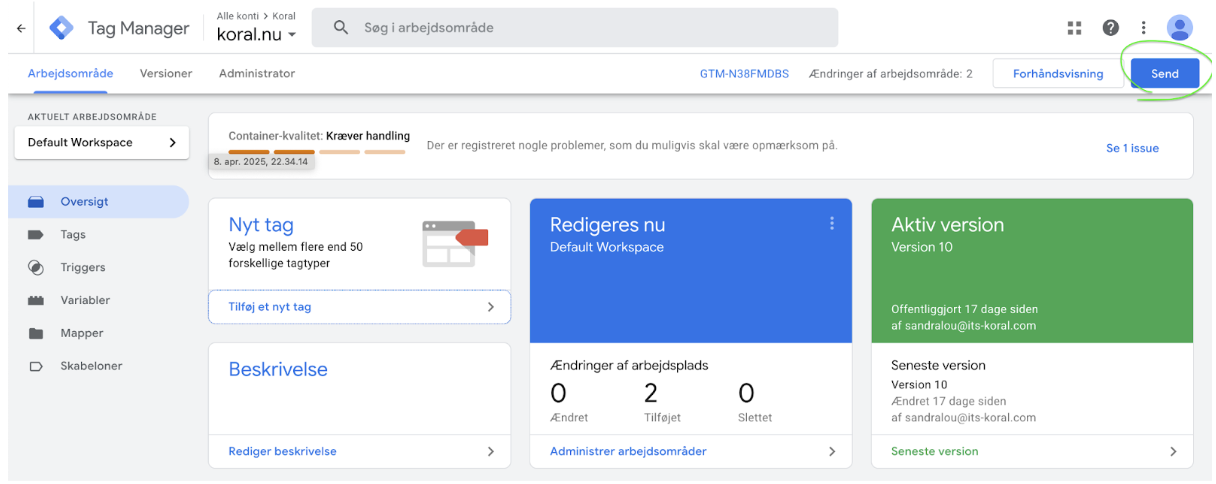
Open your Google Tag Manager container
-
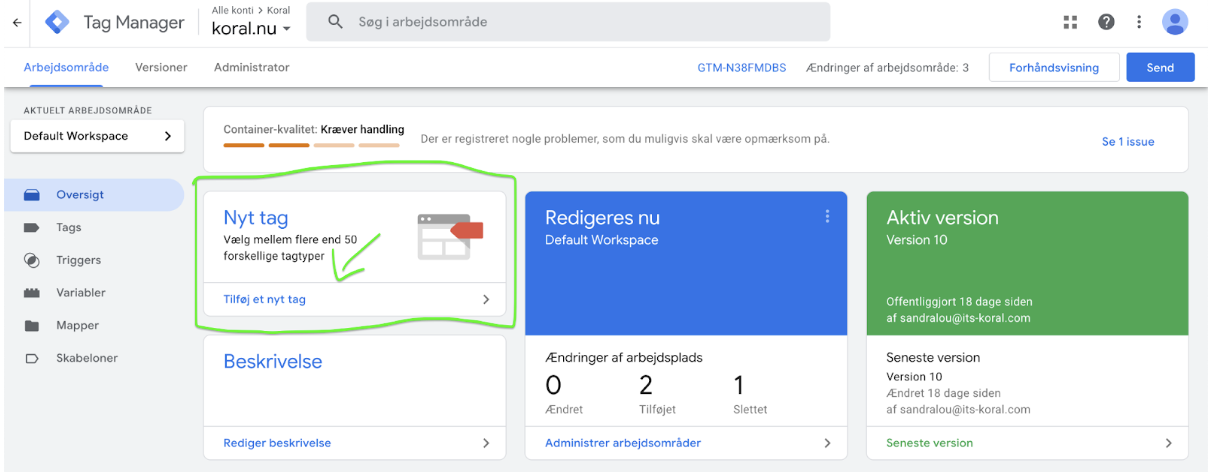
In the overview, select “Add a new tag”
-
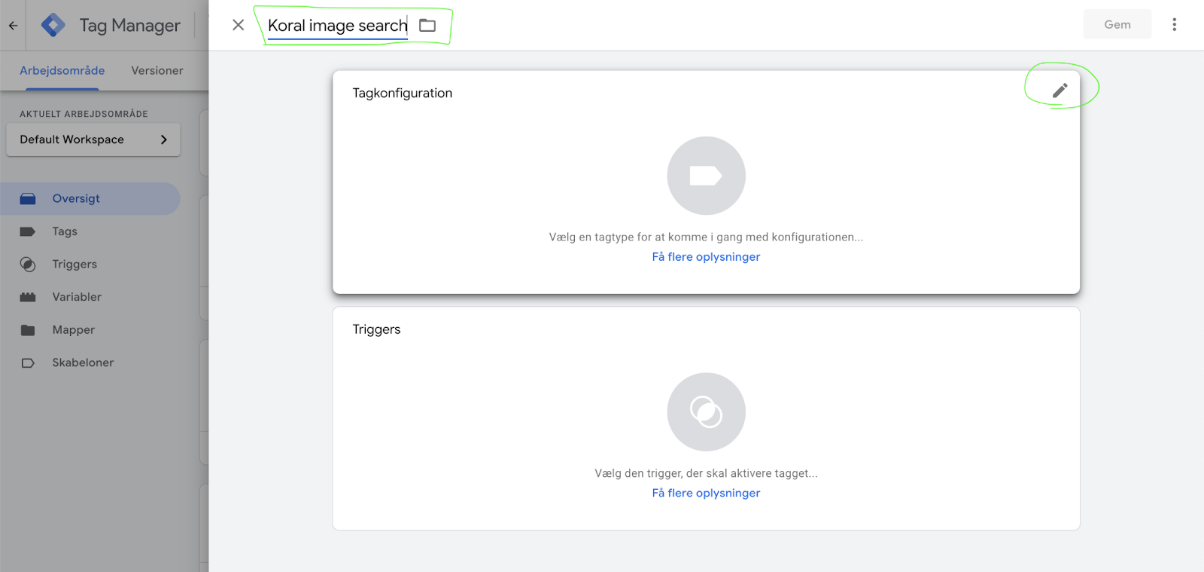
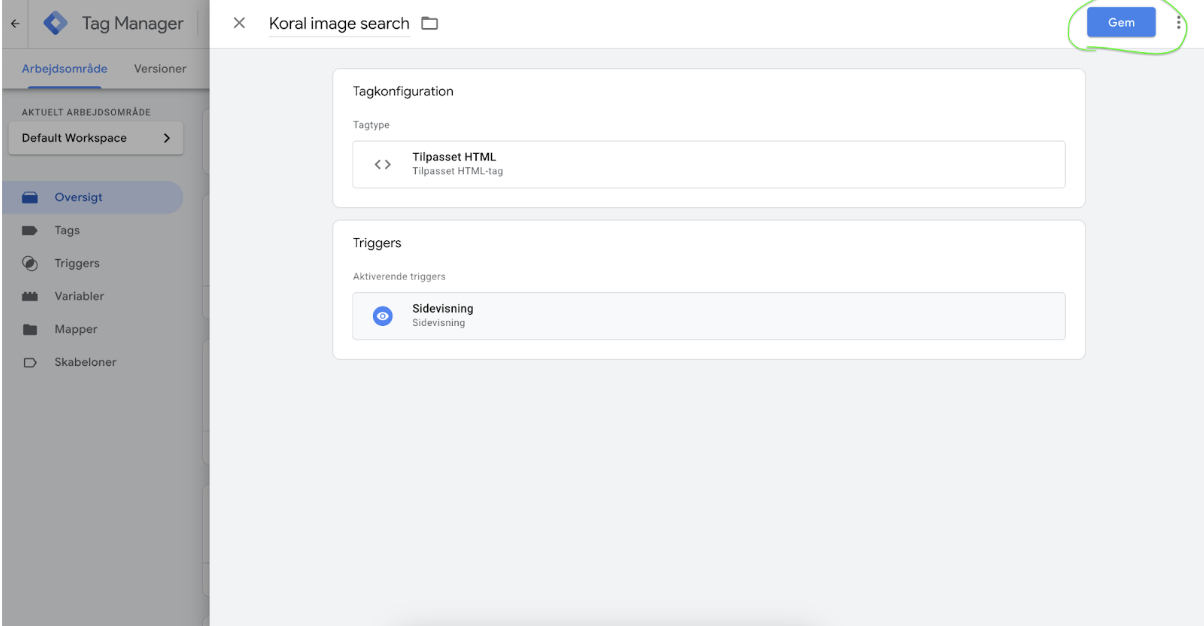
Name the new Tag - for example, “Koral image search”
-
Click on the edit icon (Tag Configuration) and begin setup
-
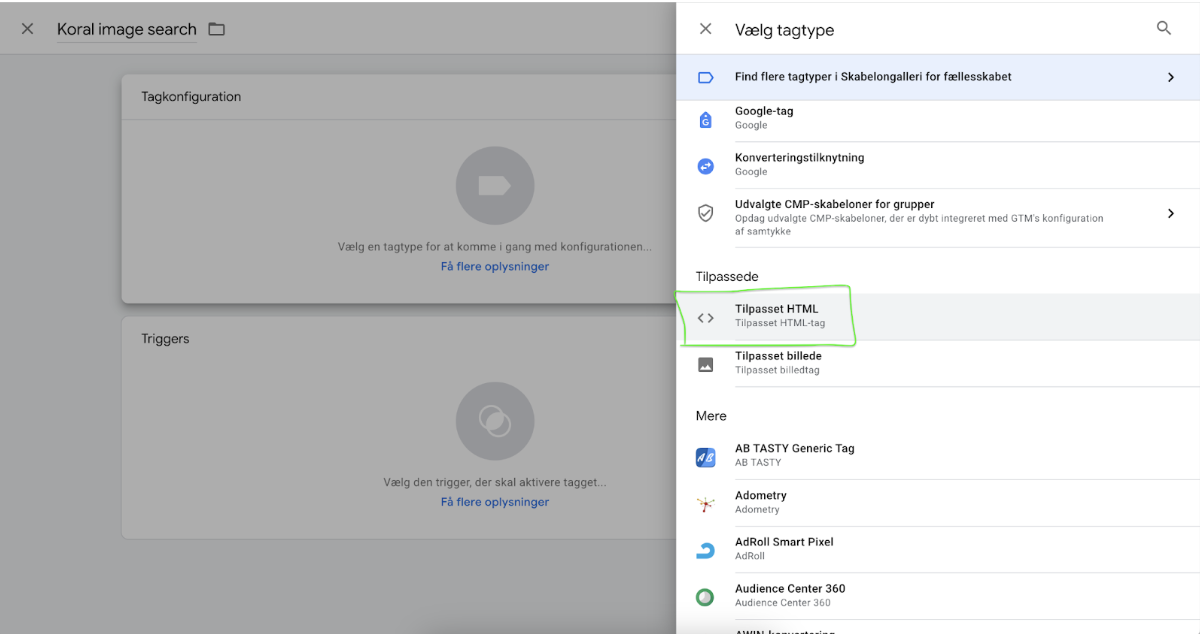
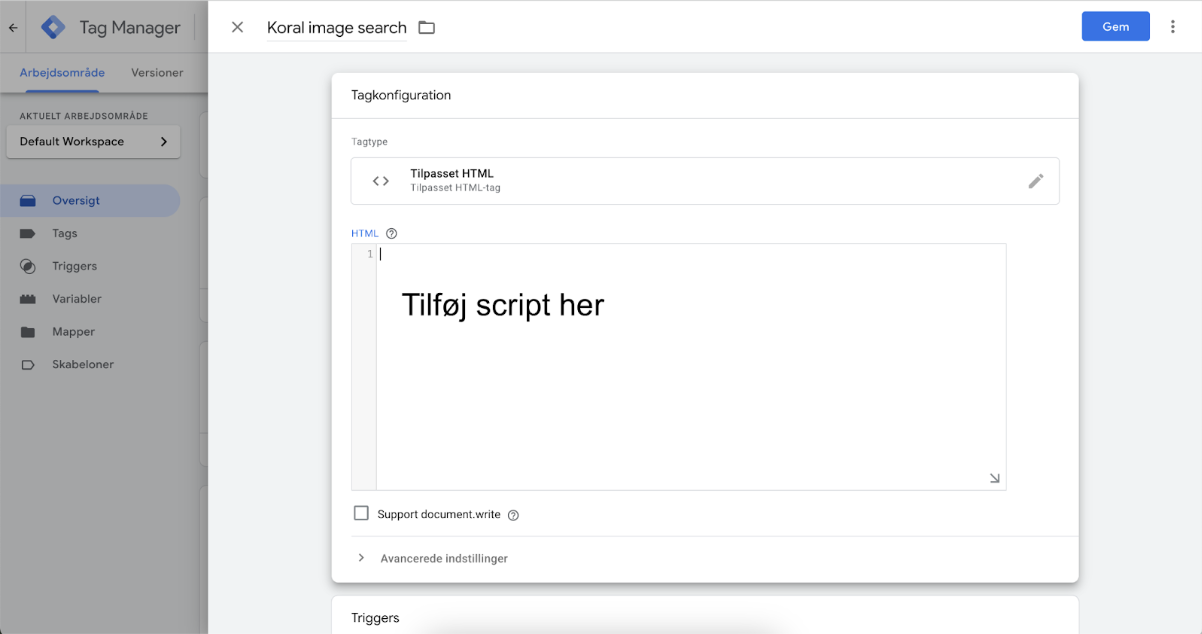
Choose the tag type “Custom HTML”
-
Add the Koral script under HTML - (You can find your unique Koral script snippet in your Koral admin dashboard.)
-
Next, click on Advanced Settings
-
Under tag triggering settings, select “Unlimited”
-
Under consent settings, select “No additional consent required”
- This is to ensure that all users, regardless of whether they accept or decline cookies, etc., will be able to use image search.
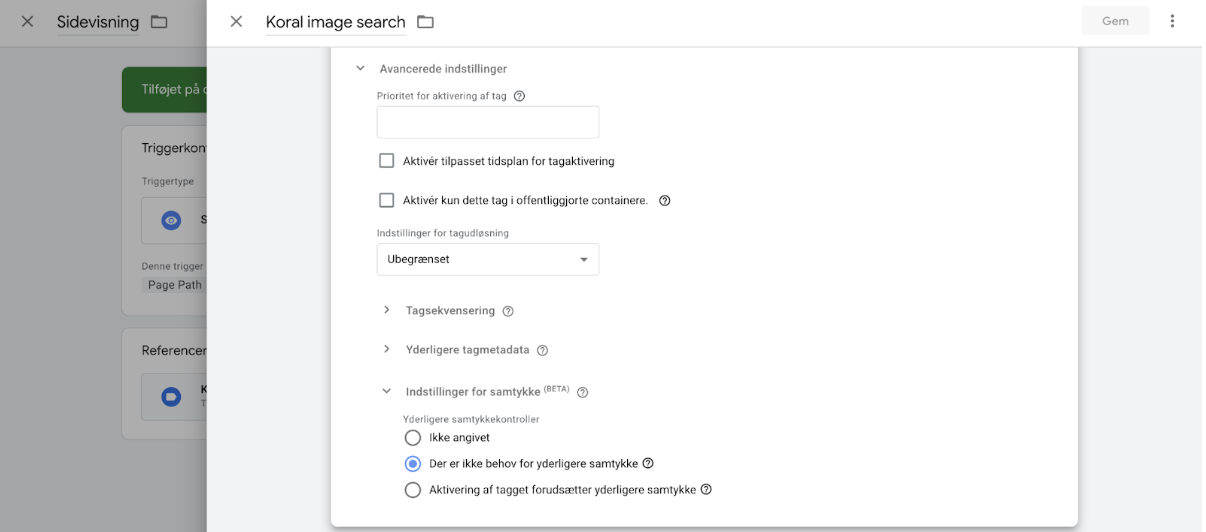
- This is to ensure that all users, regardless of whether they accept or decline cookies, etc., will be able to use image search.
-
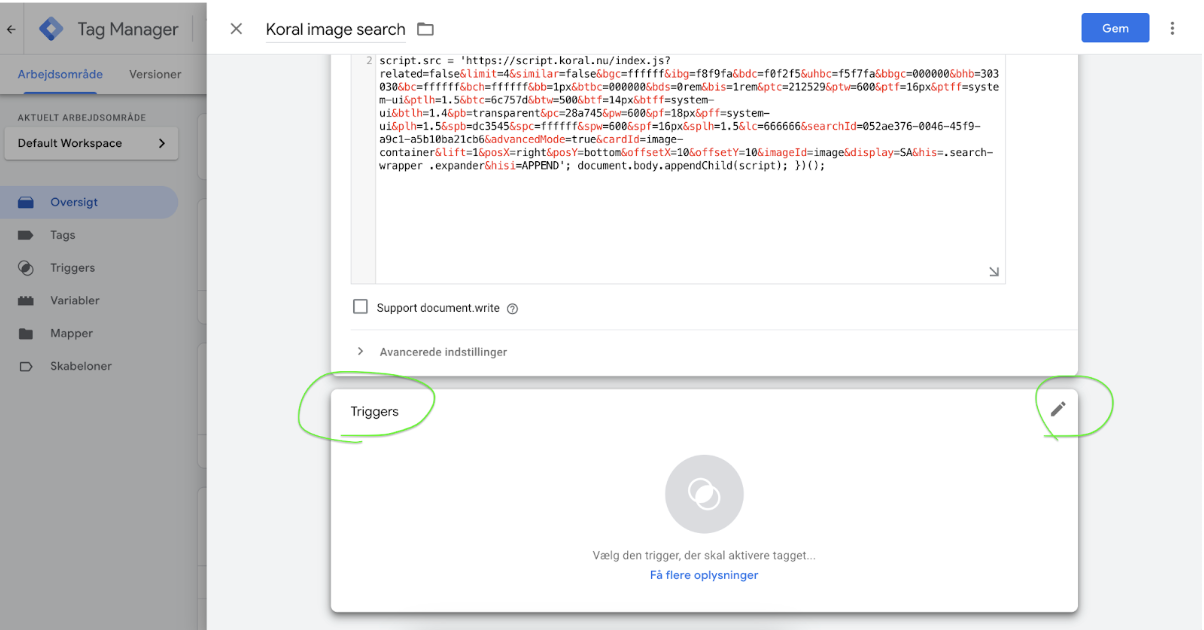
Set up the Trigger > click on the edit icon (Triggering)
-
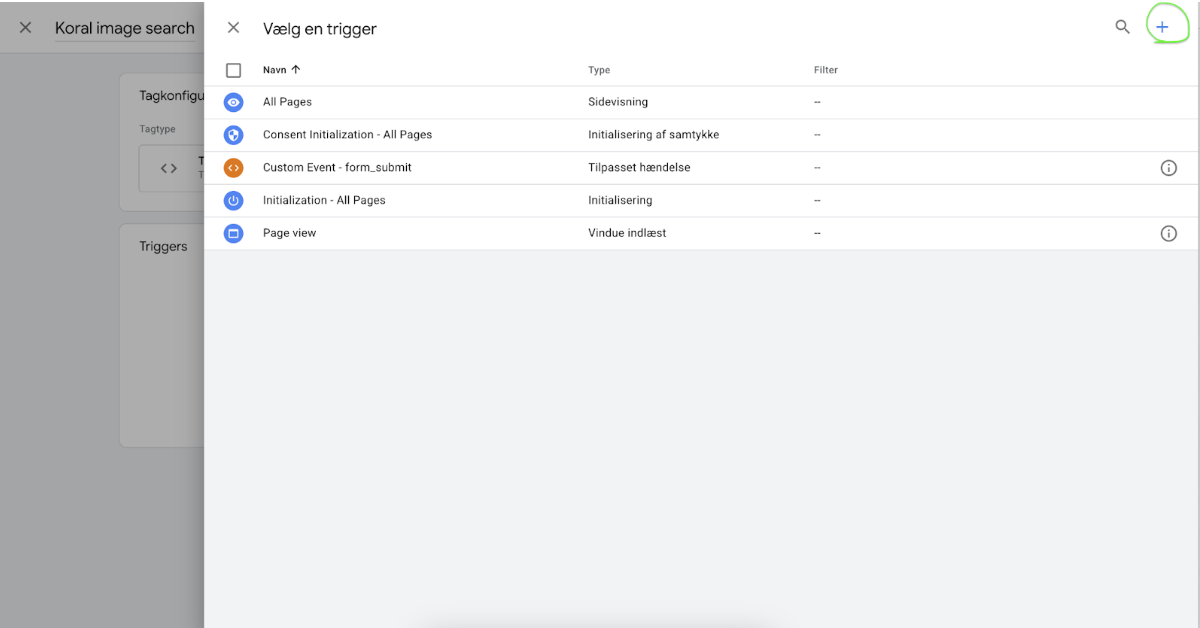
Choose “All pages” if features should be shown on all pages
-
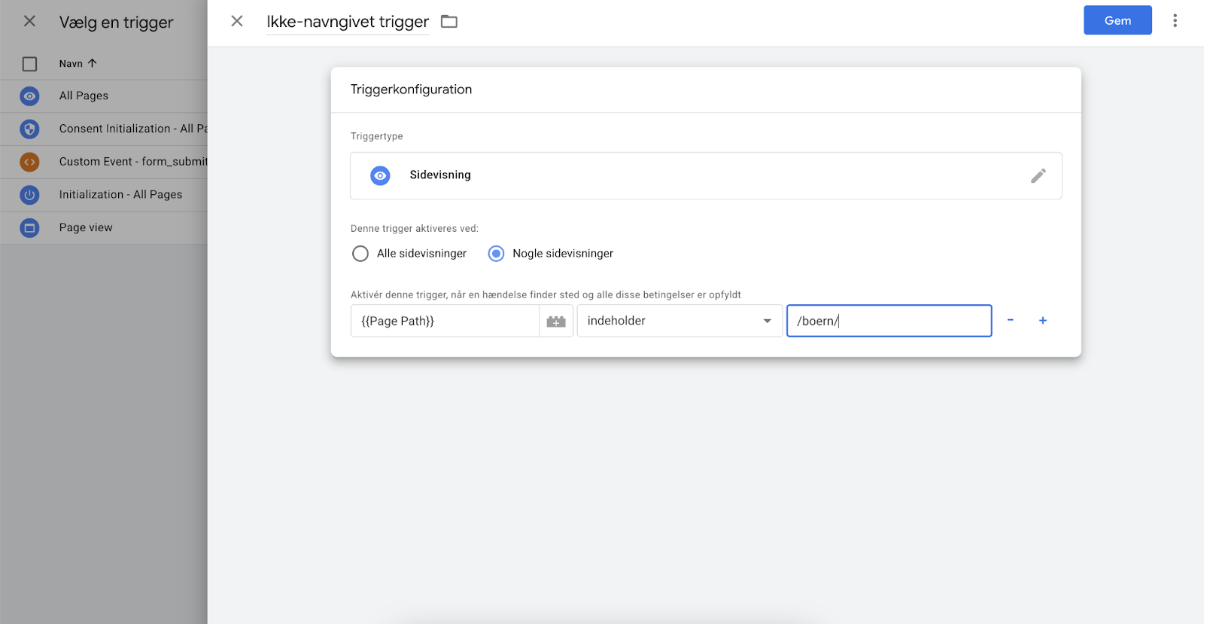
If the display should be limited to specific pages, click on the + button
-
Name this trigger configuration as desired
-
Select “Page Path” in the dropdown > “contains” > insert the path of the category where the script should be visible - here with example
/boern/ -
Save the trigger configuration
-
The final step is to submit your changes so they go live on the site the GTM container is linked to
-
Alternatively, you can choose preview mode to ensure correct setup before making it live